Settings reference
iPhone iPad MacThis page lists every Locus setting in the order it appears, with its default value and what it does. On iPhone and iPad, Settings is a single scrolling page; on Mac, it's a window with tabs.
On this page
- Settings are stored on each device and aren't synced through iCloud. On a new device, set your preferences, calendar integration and AI provider again. The one exception is the scope of Sync to Reminders, which is stored in iCloud and shared by all your devices.
- iCloud sync is always on. Settings shows the sync status but has no switch for it.
- iPhone and iPad have no separate notification settings page. Notification permission is managed in the system Settings app; in Locus you can set only the weekly review reminder and the badge count.
- The web app has its own settings; see Web app.
On iPhone and iPad
iPhone iPadOn iPhone, tap the gear button at the top right of Home to open Settings. In the wide layout on iPad and on an unfolded foldable iPhone, tap Settings at the bottom of the sidebar. A red dot on the gear means there are release notes you haven't read. Settings is made up of cards, listed here from top to bottom.
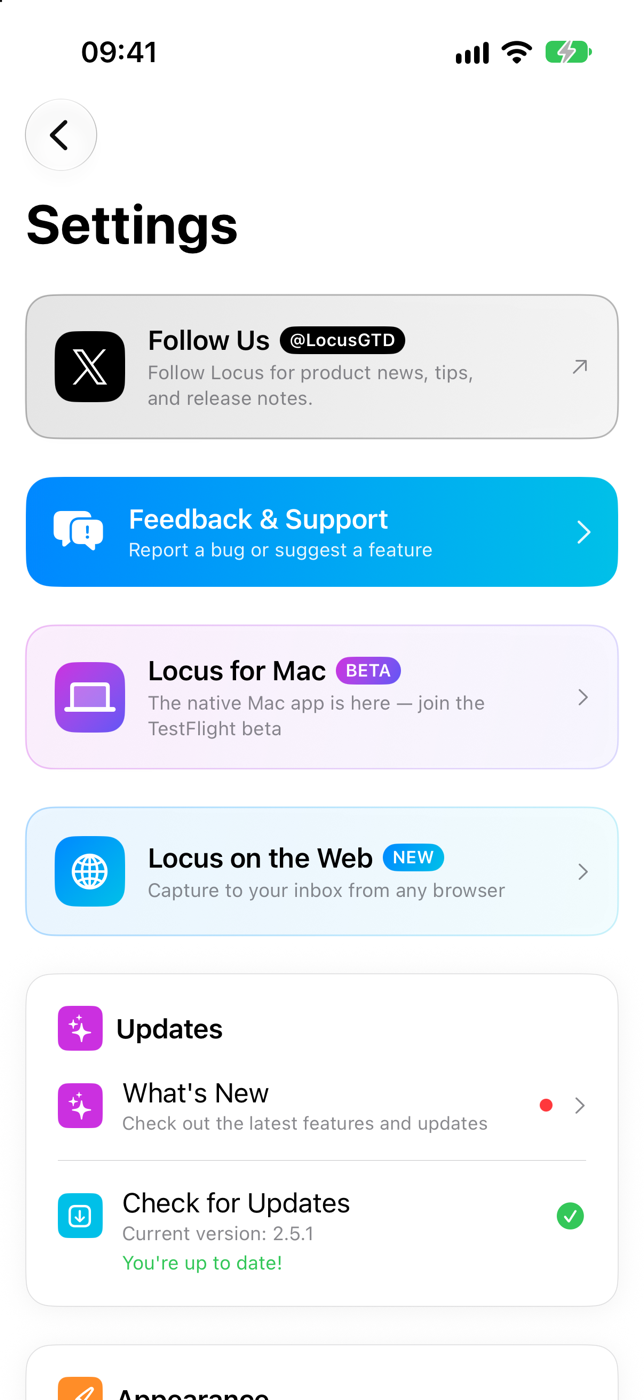
Follow Us and feedback
| Item | What it does |
|---|---|
| Follow Us | Opens Locus on social media: Xiaohongshu in mainland China, X elsewhere |
| Feedback & Support › Report a Problem | Describe a problem and email desensitized diagnostic data, or save or share the data instead. You choose whether to include AI conversations. See FAQ and troubleshooting |
| Feedback & Support › Suggest a Feature | Sends your suggestion to the developer by email |
Locus for Mac and the web app
| Item | What it does |
|---|---|
| Locus for Mac | Introduces the Mac beta, with Open TestFlight Invite and Copy invite link. See Devices and platforms |
| Locus on the Web | Introduces the web app you use in a browser. For what the web app currently offers, see Web app |
If you've hidden any shortcuts in Settings › Appearance › Home Shortcuts, they appear as rows below these two cards, so you can still open them from here.
Updates
| Item | What it does |
|---|---|
| What's New | Opens the release notes on the web. Shows a red dot when there are new notes |
| Check for Updates | Shows the current version and checks the App Store for a newer one. If one is available, tap Update to go to the App Store |
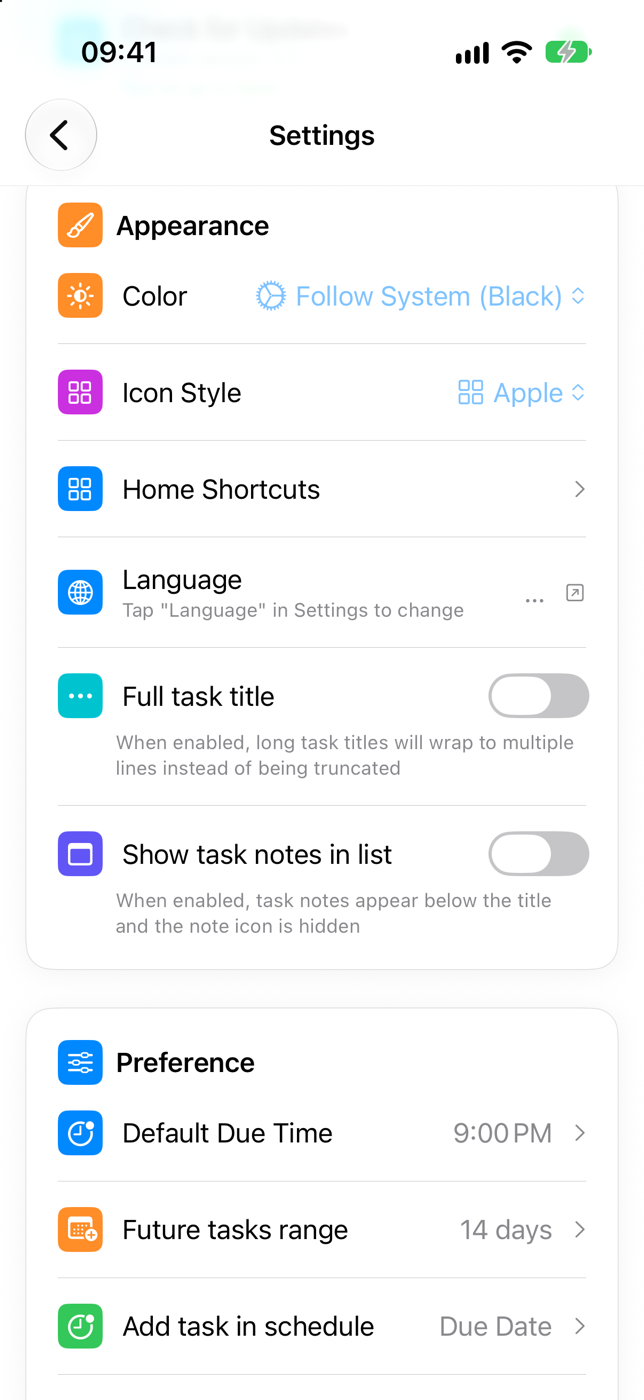
Appearance
| Setting | Default | What it does |
|---|---|---|
| Color | Follow System (Black) | Chooses the appearance. The other options are Follow System (Dark), Light, Black and Dark. Black uses a pure black background; Dark uses dark gray |
| Icon Style | Apple | The icon style for the Home shortcuts: Apple or Sticker |
| Home Shortcuts | All shown | Chooses which shortcuts appear on Home. Inbox and Projects are always shown |
| Language | Follows the system | Opens Locus's language option in the system Settings app, where you can choose a language for Locus alone |
| Full task title | Off | Wraps long task titles onto several lines instead of truncating them |
| Show task notes in list | Off | Shows task notes under the title. When it's on, Max lines can be Full or 1 to 5 lines; the default is Full |
For the Home layout, see iPhone and iPad tour.
Preference
| Setting | Default | What it does |
|---|---|---|
| Default Due Time | 21:00 | The time used when you turn on a due date. If that time has already passed today, tomorrow at that time is used |
| Future tasks range | 14 days | How far ahead the Future section of Schedule reaches: 7, 14, 21, 30, 90 or 180 days, or All. With All, Apple Calendar events are still limited to the next 90 days |
| Add task in schedule | Due Date | When you add a task with a day selected in Schedule or Calendar, that day becomes its due date or plan date, or no date is set |
| First day of week | Sunday | The day each week starts on in the calendar: Sunday, Monday or Saturday |
| Date Format | System Default | How dates are displayed, for example 2025/06/09, 09/06/2025, 2025-06-09 or 09.06.2025. The time format always follows the system |
| Date Recognition | All | Opens a page with a switch for each kind of date or time that quick entry reads from what you type: Relative days, Weekdays and weekends, Dates with month names, Numeric dates with year, Numeric dates without year and Times of day. Text in a format you turn off stays in the task title as typed. The row shows All, Off, or how many formats are on, such as 5 of 6. See Quick capture |
| Keep Processed in Inbox | On | Tasks you complete or organize in the Inbox stay in place until you pull to refresh. See Inbox and processing |
| Home task list | Flagged tasks | The tasks shown at the top of the Home list. You can choose several of flagged tasks, action lists and custom filters, or None |
| Integrations | Off | Opens the Integrations screen with four options for Apple Calendar and Reminders; see the table below. The row shows On when any of them is on |
| Weekly Review reminder | Off | Reminds you to do your review on a fixed day and time each week, and shows when the next reminder is due. See Review, Logbook and Insights |
| Badge Count | Overdue, Due soon | Chooses what the app icon badge counts; see the table below |
The Integrations screen has an Apple Calendar card and an Apple Reminders card with these four options. Each requires Locus Pro and Full Access to the matching app:
| Card | Option | Default | What it does |
|---|---|---|---|
| Apple Calendar | Show Calendar Events Pro feature | Off | Shows events from the calendars you choose in Schedule, Calendar and the widget. See Calendar and timeline |
| Apple Calendar | Sync to Calendar Pro feature | Off | Writes your planned tasks and events into a calendar named "Locus" in iCloud. Moving, renaming or deleting them in Calendar updates Locus. See Sync to Reminders and Calendar |
| Apple Reminders | Import from Reminders Pro feature | Off | Moves reminders from the lists you choose into the Inbox, optionally tagging them with the list name. See Import from other apps |
| Apple Reminders | Sync to Reminders Pro feature | Off | Writes the tasks you choose into a Reminders list named "Locus" in iCloud. Checking off, deleting or adding reminders there updates Locus. See Sync to Reminders and Calendar |
Sync to Calendar and Sync to Reminders each run on one device at a time. Turning one on here turns it off on your other device.
The badge count options are:
| Option | What it counts | Default |
|---|---|---|
| Overdue | Tasks and projects past their due time | On |
| Due soon | Tasks and projects due today or tomorrow | On |
| Planned | Tasks planned for today or earlier | Off |
| Flagged | Flagged tasks | Off |
Coming Soon
Describes Locus's plans for other platforms. It's for information only and has no settings.
Subscription
Shows your subscription status. The button below reads Subscribe Now, Change Plan or View Benefits depending on your status, and opens the Pro screen, which also has Restore at the bottom. See Free and Pro.
iCloud Sync
Shows the current sync status, such as Synced, Syncing…, Waiting to Upload or Upload Delayed. When there's a problem, it shows the cause, a suggestion and an error code. There's no switch for sync; switching to another app and back to Locus usually starts a sync.
If Locus has to repair its local database several times in a short period, it pauses iCloud sync and shows an iCloud Sync Paused card here with a Resume iCloud Sync button. For what each status means, see Sync, backup and restore.
Data Management
| Item | What it does |
|---|---|
| Things 3 Import | Imports areas, projects, tasks and tags from a Things 3 database file. See Import from other apps |
| Backup & Restore | Back Up Now creates a backup and opens the share sheet. Automatic Backup is on by default and backs up at most once a day. You can restore with Merge or Replace, and manage existing backups in Backup History. See Sync, backup and restore |
| Start Everything Fresh | After you confirm, permanently deletes all Locus data. The deletion also syncs to your other devices through iCloud, so make a backup first |
Support
| Item | What it does |
|---|---|
| Revisit Onboarding | Opens the first-run onboarding again. Some onboarding steps create real tasks and projects |
| Privacy Policy, Terms of Use | Open the corresponding web pages |
The bottom of the card also gives the support email address, which you can use if the feedback feature isn't working.
AI
Tap AI Provider to open the AI Provider page:
| Setting | Default | What it does |
|---|---|---|
| Provider type | Built-in | Built-in uses the AI service provided by Locus and requires Pro. Custom API Key uses your own AI service and also requires Pro on iPhone and iPad |
| Usage | With built-in AI, shows the remaining percentage of Daily AI Usage and Weekly AI Usage and when each resets | |
| Provider, API Key, Model, Endpoint | Fill these in for a custom API key, then tap Validate & Save. The API key is stored only on this device |
See Locus AI assistant.
The very bottom of the page shows the app's version and build number, which are useful when you contact support.
On Mac
MacPress ⌘,, or click the gear button in the toolbar above the sidebar, to open the Settings window. It has 8 tabs along the top. You can resize the window, and it reopens at the same size. There are no separate tabs for notifications, sync or accounts on Mac.
General
These defaults are stored only on this Mac.
| Setting | Default | What it does |
|---|---|---|
| Global Capture › Show in Menu Bar | Off | Shows a Locus icon in the menu bar. Click it to open the Quick Add panel; right-click it for a navigation menu. See Mac tour |
| Default Due Time | 21:00 | The time used when you give a task a due date |
| Future Tasks Range | 14 days | How far ahead the Future section of Schedule reaches: 7, 14, 21, 30, 90 or 180 days, or All Future Tasks |
| First Day of Week | Sunday | The day each week starts on in the calendar's month and week views: Sunday, Monday or Saturday |
| Date Format | System Default | How dates are displayed throughout the app |
| Date Recognition | All selected | One checkbox for each kind of date or time that the Quick Add panel and inline rows read from what you type: Relative days, Weekdays and weekends, Dates with month names, Numeric dates with year, Numeric dates without year and Times of day. Text in a format you turn off stays in the task title as typed. See Quick capture |
| Add Task in Schedule | Due Date | When you add a task with a day selected in Calendar, that day becomes its due date or plan date, or no date is set |
| Processed Inbox Tasks › Keep until cleared | On | Tasks you complete or organize in the Inbox stay in the list until you choose View > Clear Kept Items (⌥⌘K). When it's off, they're removed right away |
Appearance
| Setting | Default | What it does |
|---|---|---|
| Color | System | Follows the system appearance, or always uses Light or Dark |
| Text Size | 100% | Adjusts text throughout the app between 90% and 130%. The main window reloads when you change it |
| Full Task Titles | Off | Wraps long task titles instead of truncating them |
| Task Note Lines | Hidden | Whether notes appear in task lists, and whether they show 1 to 5 lines or in full |
| Project Note Lines | 1 line | Whether project notes appear in the project list, and how many lines are shown |
Integrations
The Integrations tab has an Apple Calendar group and an Apple Reminders group, each with two cards, and a short description of each option sits below its card. Each card starts with a switch, and most of its other rows appear only once the switch is on; Tasks to sync is shown either way. If Locus doesn't have Full Access to Calendar or Reminders, the Show Calendar Events and Import from Reminders cards show a note with Request Access or Open System Settings. These settings are stored only on this Mac, except Tasks to sync, which is shared through iCloud. During the Mac beta, none of these options requires Pro.
| Card | Setting | Default | What it does |
|---|---|---|---|
| Show Calendar Events | Show Calendar Events | Off | Shows events from Apple Calendar in Schedule and Calendar. The first time you turn it on, Locus asks for calendar access. See Calendar and timeline |
| Show Calendar Events | Calendars | All | Shows how many calendars are selected, such as 3 of 5. Click Choose… to select calendars, or use Select All and Select None. If no calendar is selected when you turn on the display, all calendars are selected |
| Show Calendar Events | Show events for | 90 days | How many days of upcoming events to load: 30, 90, 180 or 365 |
| Sync to Calendar | Sync to Calendar | Off | Writes your planned tasks and events into a calendar named "Locus". Moving, renaming or deleting them in Calendar updates Locus. Once it's on, a status line with Sync Now appears. See Sync to Calendar |
| Import from Reminders | Import from Reminders | Off | Moves reminders from the lists you choose into the Inbox, through the From Reminders button in the Inbox toolbar. See Import from other apps |
| Import from Reminders | Lists | None | Click Choose… to select the Reminders lists to import from. The "Locus" list used by Sync to Reminders isn't offered |
| Import from Reminders | Use list names as tags | Off | Gives each imported task a tag named after its Reminders list |
| Sync to Reminders | Sync to Reminders | Off | Writes your tasks into a Reminders list named "Locus". Checking off, deleting or adding reminders there updates Locus. Once it's on, a status line with Sync Now appears. See Sync to Reminders |
| Sync to Reminders | Tasks to sync | All active tasks | Which tasks are written to Reminders: All active tasks, Tasks with dates, Flagged tasks or one of your custom filters. You can choose it before turning syncing on, and it's shared with your other devices through iCloud |
Sync to Calendar and Sync to Reminders each run on one device at a time. Turning one on here turns it off on your other device.
Data
| Item | What it does |
|---|---|
| Backup & Restore | Automatic daily backups is on by default. Back Up Now… creates a backup in the local backup library and then asks where to save a copy. Merge Backup… and Replace from Backup… restore from a backup file, and Show Backups in Finder opens the backup folder |
| iCloud Sync › Redownload from iCloud… | Use this when items on your other devices never appear on this Mac. Locus first checks whether this Mac still has changes waiting to upload, then saves a backup, quits and rebuilds this Mac's data from iCloud the next time it opens |
| Things 3 › Import from Things 3… | Imports from a Things 3 database file. The import only adds data and never changes what you already have |
| Sample Data | Add Sample Data adds example content in English or Chinese, and Add Markdown Task adds a task that demonstrates Markdown notes. Delete All Data… permanently deletes all Locus data after you confirm |
For details on backups and redownloading, see Sync, backup and restore.
Subscription
Shows your subscription status, such as when a trial or the current period ends. View Plans… opens the Locus Pro window, Manage Subscription opens subscription management in the App Store, Restore Purchases restores an earlier purchase and Refresh updates the status. Pro is shared across devices signed in with the same Apple Account. See Free and Pro.
About
Offers What's New… (release notes), Check for Updates…, Send Feedback…, Privacy Policy, Terms of Use and Follow Us.
AI Provider
| Setting | Default | What it does |
|---|---|---|
| Provider type | Built-in | Built-in uses the AI service provided by Locus and requires Pro. Custom API Key uses your own AI service; the Mac beta currently doesn't require Pro for it |
| Usage | With built-in AI, shows the remaining daily and weekly usage | |
| Provider, API Key, Model, Endpoint | Fill these in for a custom API key, then click Validate & Save. With OpenRouter, Choose Model lets you search for a model |
MCP
| Setting | Default | What it does |
|---|---|---|
| Enable MCP server | On | Lets AI apps on this Mac, such as Claude Code, Codex and Claude Desktop, connect to Locus. The first time an app connects, Locus asks you to confirm |
| Access | Ask before destructive changes (recommended) | Read-only, Ask before destructive changes (recommended) or Allow all changes. A change applies to new connections only |
| Connect a client | Lists the commands and configuration for connecting Claude Code, Codex and Claude Desktop, each with a Copy button | |
| Cloud connector | Shows the cloud connector's server address and setup steps. Requires Pro |