iPhone and iPad tour
iPhone iPadOn iPhone, Locus uses a single-column layout, and you reach every page from Home. On iPad and on an unfolded foldable iPhone, whenever the window is wide enough, the interface uses a wide layout with a sidebar and an inspector. Both layouts offer the same features, arranged differently.
On this page
- Home has shortcuts at the top, lists of flagged tasks, favorite projects and favorite filters below them, and a schedule summary and new-task button at the bottom.
- Swipe right on a task to flag it or add a subtask, and swipe left to start selecting multiple tasks. Touch and hold a task for the full menu of actions.
- On iPad and on an unfolded foldable iPhone (the wide layout), a sidebar stays on the left and tasks open in the inspector on the right.
- Actions on iPhone and iPad can't be undone, so check before you delete a task.
Using Locus on iPad
When you use Locus full screen on iPad, in landscape or portrait, it uses the wide layout described below. In Slide Over, or when you make the window narrow in Split View or Stage Manager, Locus switches back to the same single-column layout as on iPhone. Gestures, context menus and multiple selection work the same way in both layouts.
Home
- 1Shortcuts: Inbox, Project, Calendar, Tag, Filter, Nearby and Logbook. You can hide some of them in Settings, and they fold away as you scroll the list
- 2Home list: your Home task list (Flagged tasks by default), then Favorite Projects and Favorite Filters
- 3Schedule summary: counts for Past, Today, Soon and Future. Tap to open Schedule; swipe left for First Available
- 4New task: tap for the quick-entry card, swipe up for the full editor
- 5Locus AI assistant (Pro)
- 6Process and review menu: start processing the Inbox or reviewing projects
- 7Search and Settings
Shortcuts
The top of Home lists seven shortcuts: Inbox, Project, Calendar, Tag, Filter, Nearby and Logbook. Each one shows related information on the right, such as the number of items in the Inbox, today's next scheduled item and the number of tasks completed today. When the oldest item in the Inbox has been there for 3 days or more, it is highlighted in orange.
As you scroll up the list, the shortcuts collapse into a compact two-line card. Scroll back to the top to expand them again.
- Hiding shortcuts: go to Settings › Appearance › Home Shortcuts and turn off the ones you don't need. Inbox and Project are always shown. Hidden shortcuts appear at the top of the Settings page, so you can still open them from there.
- Icon style: choose Apple or Sticker in Settings › Appearance › Icon Style.
- Nearby requires Locus Pro.
The Home list
Below the shortcuts, the list has three parts:
- Home task list: shows flagged tasks by default. In Settings › Preference › Home task list, you can show one or more action lists or custom filters instead, or choose None.
- Favorite Projects: projects you have starred on the project page.
- Favorite Filters: built-in action lists and custom filters you have marked as favorites.
The order of the Home list is fixed and can't be rearranged. Pull down to refresh the list and update the location used by Nearby-type filters.
The bottom bar
- Schedule summary: shows the number of items under Past, Today, Soon (the next 1 to 3 days) and Future, counting tasks, due projects and Apple Calendar events. Tap a number to open Schedule at that section. Swipe left to switch to First Available, which shows the tasks you can do now in each project. On iPad, when this area is wide enough (for example on a 13-inch iPad, in either orientation), the schedule summary and First Available sit side by side in one row, so there is no need to swipe; tap either one to open the matching page of Schedule.
- New task button (+): tap it to open the quick-entry card, or swipe up on it to open the full task editor. For how quick entry works, see Quick capture.
- AI button: opens the Locus AI assistant. It requires Locus Pro.
Top buttons
- The cup icon at the top left is the Process and Review menu, where you can start processing the Inbox or reviewing projects. The icon turns blue when the Inbox has items and indigo when projects are due for review.
- At the top right are Search and Settings. When there are release notes you haven't read, a red dot appears on the Settings icon.
iOS 18 through iOS 25
On systems earlier than iOS 26, the Process and Review menu appears at the bottom left, and Home has no AI button at the bottom.
Search
Tap the magnifying glass at the top right of Home to open Search. Results are divided into three tabs: Tasks, Projects and Tags. Tasks and projects are matched by title and notes, and tags by name. For tasks and projects you can switch between Active and All; All includes completed items.
Wide layout
iPad iPhoneiPad and unfolded foldableOn iPad and on an unfolded foldable iPhone, Locus uses a wide layout with a sidebar whenever the window is wide enough (at least 700 points, which any full-screen iPad meets in both landscape and portrait). In a narrower window, such as Slide Over or a narrow Split View or Stage Manager window, Locus switches back to the single-column iPhone layout. When you unfold a foldable iPhone, Locus switches straight to the wide layout, and if you were on Home, it opens the Inbox automatically. The wide layout is arranged like this:
- The sidebar stays on the left. It contains Inbox, Project, Calendar, Tag, Filter, Nearby and Logbook, plus two buttons, Process Inbox and Review Projects, each showing how many items are waiting. At the bottom of the sidebar are Assistant (Locus AI) and Settings.
- The content column on the right shows the page you selected in the sidebar. Tapping the selected item again returns to the first level of that page.
- Inspector: when you tap a task on any page, the full editor opens in the inspector on the right instead of a new screen, and the task stays highlighted in the list. The inspector closes when you switch pages. If there are unsaved changes, Locus first asks whether to discard them.
- When the inspector is open and space is short, or when the right side shows Calendar, Logbook, Process Inbox or Project Review, the sidebar narrows to a strip of icons. On a larger iPad in landscape there is enough room, so the sidebar stays expanded while the inspector is open.
- If the window is too narrow to fit the inspector beside the list, for example on an iPad mini in portrait, tapping a task opens the editor as a sheet instead.
Some pages use a two-page arrangement in the wide layout:
| Page | Arrangement in the wide layout |
|---|---|
| Calendar | The month calendar on the left and the selected day's tasks on the right; the timeline can show 7 days |
| Logbook | A daily list of completed tasks on the left page and a monthly overview on the right page, with Daily Rhythm, Tasks Done, Active Days, Busiest Day and Most Active Projects |
| Process Inbox | Processed items sorted into groups on the left page, and the current item on the right page |
| Project Review | The review queue on the left page and the current project on the right page |
When a foldable iPhone is half folded and held upright, Calendar, Process Inbox and Nearby split into top and bottom halves, for example the month calendar or map on top and the task list below.
Multiple windows and the keyboard on iPad
- On iPad you can open several Locus windows at once. Each window uses the wide layout or the single-column layout according to its own width.
- With a hardware keyboard connected, press ⌘N to create a new task and ⌘F to open Search.
Working with task lists
Tapping
- Tap a task to open the editor. On iPhone it appears as a sheet; in the wide layout it appears in the inspector.
- Tap the circle on the left to complete a task, and tap it again to make the task active.
- Tap the project name below a task to go straight to that project.
- Tap the disclosure arrow to show or hide subtasks.
Swiping
- Swipe right: shows the Flag and Add Subtask buttons. A full swipe adds or removes the flag directly.
- Swipe left: starts multiple selection with that row selected. Swipe left again to stop selecting.
The context menu
Touch and hold a task to see these actions:
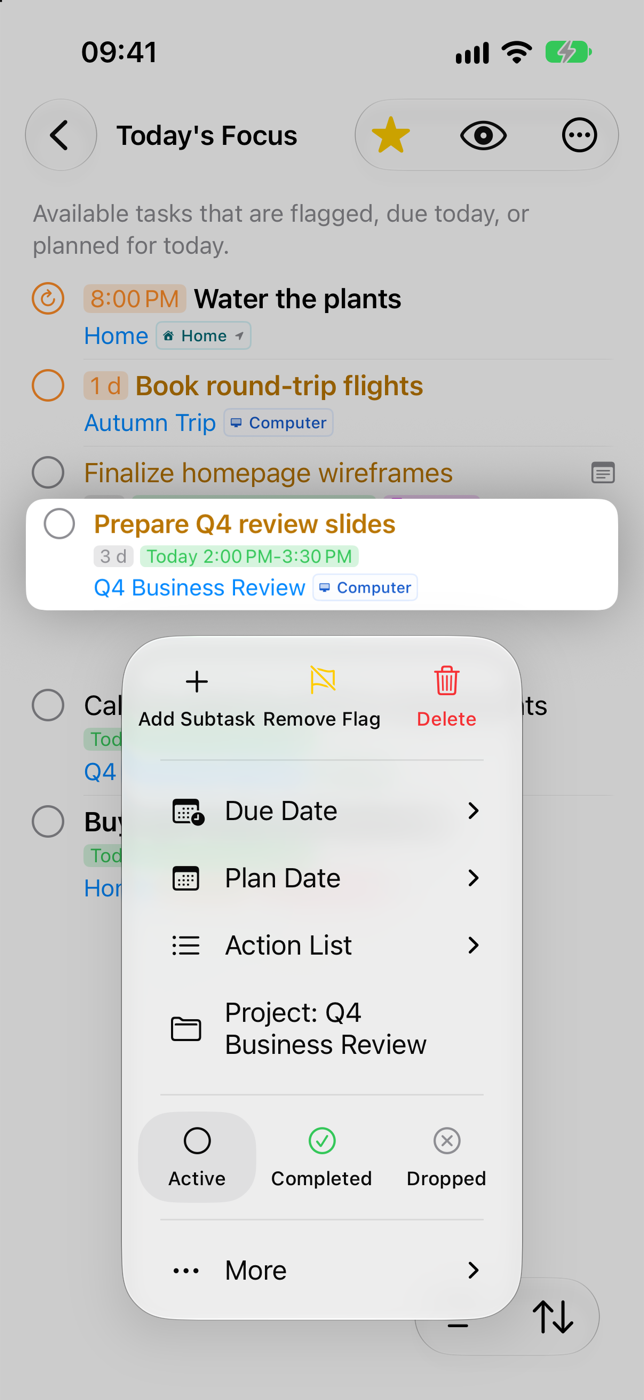
- Add Subtask, Add Flag or Remove Flag, and Delete.
- Due Date: Due Today, Tomorrow, Other Date… and Clear.
- Plan Date: Plan Today, Tomorrow, Other Date… and Clear.
- Action List: No List, Next Action, Waiting For and Someday / Maybe.
- Project: choose a project, or a section within a project.
- Skip This Occurrence: only for active repeating tasks.
- Status: Active, Completed and Dropped.
- More: Duplicate and Convert to Project.
For a repeating task whose current occurrence has been changed with "This Task Only", the menu also offers options such as Revert to Usual and Apply to All Future Tasks; see Repeating tasks. When you touch and hold a section, the flag item is replaced by Archive Section.
Deleting can't be undone
Actions on iPhone and iPad can't be undone. Deleting a single task from the context menu takes effect immediately, without asking for confirmation. Before making important batch changes, consider making a backup.
Selecting multiple tasks and editing them together
Swipe left on a task to start multiple selection. Then tap tasks to select or deselect them, or drag up or down the checkbox column on the right to select or deselect a whole run of tasks at once. Selecting a parent task also selects its subtasks.
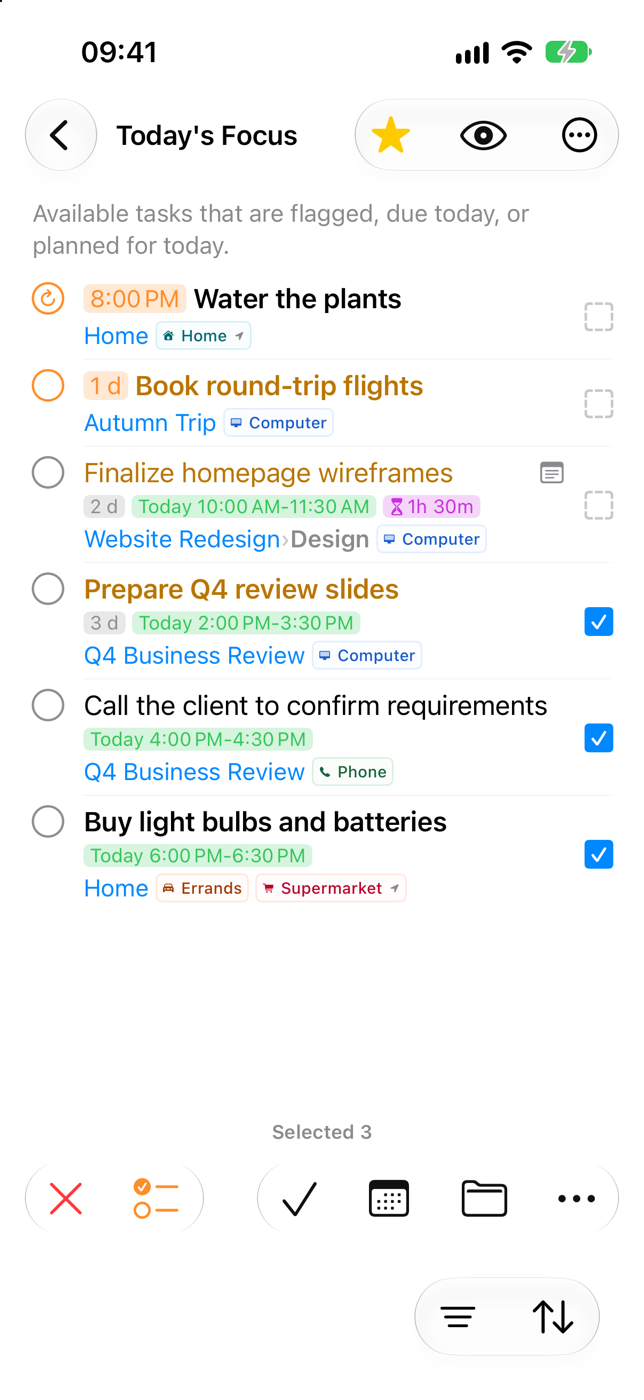
The toolbar at the bottom offers these batch actions:
| Button | Action |
|---|---|
| Selection | Select All, Invert Selection and Deselect All, and shows how many tasks are selected |
| Complete | Completes every selected task |
| Date | Sets the due date or plan date |
| Move to Project | Moves the tasks to a project or section |
| More | Flag, status, action list, tags (choose Add to existing or Replace), Duplicate and Delete |
Locus asks you to confirm before deleting tasks in a batch, and the subtasks of the selected tasks are deleted too. Every task list supports multiple selection except Schedule and the Logbook.
Drag and drop
- In the Inbox and in projects, you can drag tasks to reorder them, or drop a task on another task to make it a subtask. After selecting several tasks, you can drag them together.
- In the project list, you can drag projects to reorder them or drop them into folders.
- The tag list and the filter list can be reordered by dragging.
- On the calendar timeline, drag a time block to reschedule it or change its duration. See Calendar and timeline.
View options
Most pages have an eye icon at the top right for changing what the page shows and for expanding or collapsing everything. The options on each page are:
| Page | Show | Refine | Sort and group |
|---|---|---|---|
| Inbox | Available Tasks / Remaining Tasks | ||
| Project | First Available / Available / Remaining / All | ||
| Tag | First Available / Available / Remaining / All | Yes | Yes |
| Next Action | Available Tasks / Remaining Tasks | Yes | Yes |
| Waiting For, Someday / Maybe | Yes | Yes | |
| Custom filters | Yes | Yes, saved in the filter | |
| Schedule | Focus / All | Calendar filter | Yes |
| Calendar (list mode) | Remaining / All | Calendar filter | Yes |
The display options mean:
- First Available: only the one task to do first in each project or task group.
- Available (Available Tasks): every task you can do right now.
- Remaining: every unfinished task, including tasks whose defer date hasn't arrived and tasks blocked by earlier ones.
- All: the remaining tasks plus completed ones.
Other ways in
- Home Screen quick action: touch and hold the Locus icon on the Home Screen and choose Add Task to open the task editor directly.
- Links:
locus:///addcreates a new task,locus:///inboxopens the Inbox,locus:///todayopens Schedule at Today, andlocus:///tag/<tag ID>andlocus:///perspective/<filter ID>open the specified tag or filter. - For widgets, Siri and Shortcuts, see Widgets, Siri and Shortcuts.