Today, Schedule and Flagged
iPhone iPad MacSchedule brings together your dated tasks, projects with due dates and Apple Calendar events in date order, from unfinished items in the past through to the weeks ahead. Locus has no separate Today list; the Today section of Schedule is where you start each day. Flags mark the tasks you consider important and want to keep in view.
On this page
- Schedule is divided into Past, Today, Tomorrow, the two days after, and Future. Today includes tasks planned, due or deferred until today, and tasks whose plan date has passed but which are still open.
- On iPhone and iPad, you open Schedule from the schedule summary at the bottom of Home, and you can filter it by date type, action list, project and tag.
- On the Mac, press ⌘5 to open Schedule. The Overdue section can move every overdue item to today in one step.
- Flagged tasks appear on Home by default on iPhone and iPad, and have their own Flagged page on the Mac (⌘7).
What Schedule shows
Schedule contains three kinds of item: tasks that fall on a particular day, active projects with a due date, and, when Apple Calendar integration is on, events from the calendars you chose. A task falls on a day through its due, plan or defer date; if a task has different dates on different days, it appears once on each of those days.
| Section | Contents |
|---|---|
| Past (Overdue on the Mac) | Open tasks due before today, and projects whose due date has passed |
| Today | Tasks due today, planned for a range that includes today, or deferred until today; open tasks whose plan date has passed; projects due today; calendar events today that haven’t ended yet |
| Tomorrow, and the two days after | Tasks, projects and calendar events that fall on that day. Each day is its own section |
| Future | From the fourth day onwards, up to the number of days set in the Future Tasks Range |
A few more rules apply:
- A plan that spans several days appears once on each day in the range. In the Future section it appears only once, however many of those days it covers.
- Defer dates that have passed are no longer shown. A task whose plan date has passed appears only in Today; it doesn’t stay on the earlier day.
- In the Today section, flagged items come first. Timed calendar events that have already ended today are no longer shown.
- Items are sorted by Schedule Time by default, which is the time each item falls on that day.
For the full meaning of plan, due and defer dates, see Dates: plan, due and defer.
On iPhone and iPad
iPhone iPadOpening Schedule
Schedule opens as a sheet that slides up from the bottom of Home. You can open it in these ways:
- Tap one of the numbers in the schedule summary at the bottom of Home. Schedule opens at the matching section.
- Tap a task’s due reminder. Schedule opens at Today and highlights the task.
- Open the link
locus:///today.
The button in the bottom-left corner of the sheet switches between the Schedule and First Available pages.
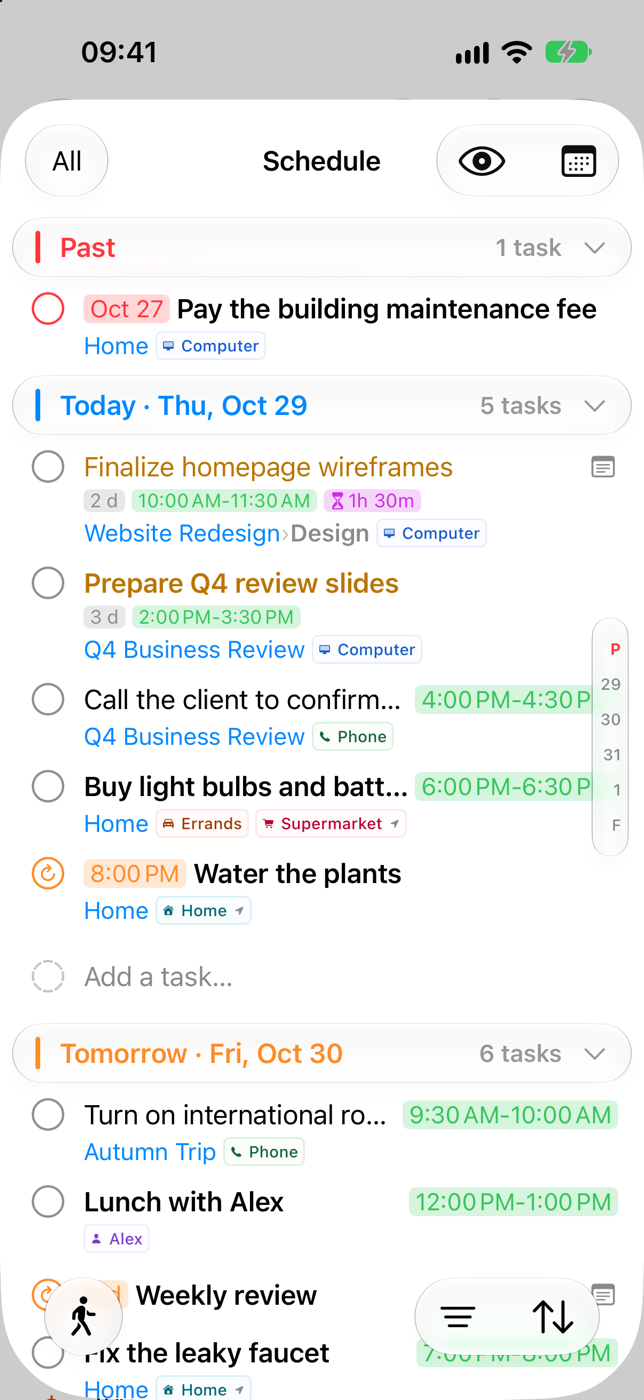
Browsing and display options
- Index rail: the rail on the right lists Past, the four days starting today, and Future, with the number of items in each. Tap or drag on it to jump to a section.
- Focus and All: the button in the top-left corner switches between two layouts. All shows every section in one continuous scrolling list and is the default. Focus shows one section at a time; drag the section bar at the bottom to switch.
- Expand and collapse: the eye icon in the top-right corner has Expand All and Collapse All, and each section can also be collapsed on its own.
- Calendar: tap Calendar in the top-right corner to close the sheet and open the Calendar page.
- Future section: the range label above the section reads “Up to future N days” or “All future tasks”; tap it to change the Future Tasks Range. The Calendar Events switch next to it shows or hides Apple Calendar events in the Future section.
Filtering, sorting and grouping
The buttons at the bottom of Schedule open the filter and sort menus:
- Filter: under “Show on calendar by”, choose which of Due, Plan and Defer dates place tasks on the calendar (at least one must stay on). You can also filter by Action Lists, Projects (including No Project) and Tags (including No Tag). Tap Clear All to restore the defaults. The same filter applies to Calendar, the schedule summary on Home and the widget.
- Sort By: Schedule Time, Due Date, Plan Date, Defer Date, Created Date, Title, Project or Flagged.
- Group By: No Grouping, Project, Flagged, Date or List.
Adding tasks from Schedule
Each day section ends with a quick-add row. When a day is selected, a + button also appears at the bottom; tap it for quick entry, or drag it upwards to open the full editor.
New tasks take the selected date. Go to Settings › Preference › Add task in schedule to choose how that date is used:
| Option | Date on the new task |
|---|---|
| Due Date (default) | The selected date becomes the due date, at the Default Due Time |
| Plan Date | The selected date becomes the plan date |
| None | No date is set automatically. When you add a date yourself, it starts on the selected day |
Tasks in Schedule can’t be multi-selected. To change several at once, use another list or Calendar’s list mode.
The schedule summary on Home
At the bottom of the iPhone Home screen is a summary bar you can swipe left and right:
- The first page shows how many items are in Past, Today, Soon (the next 1 to 3 days) and Future. The counts cover the same items as Schedule and follow its filter. When the bar is wide enough, Soon is split into Tomorrow and the weekdays of the two days after. Tap a number to open Schedule at that section; tapping Soon jumps to the first of the next three days that has items.
- The second page shows First Available with the number of tasks you can work on now. Tap it to open the First Available page.
In the wide layout on iPad and on an unfolded foldable iPhone, these numbers are arranged vertically at the side when the system provides a vertical toolbar.
First Available
The First Available page lists the task that should come first in each project or task group, which is helpful when you aren’t sure where to start. Tap the i button to read About First Available.
At the bottom of the page you can refine the list by action list, project and tag, and choose how it is sorted and grouped. When nothing can be done right now, the page shows No Available Tasks. Locus works out First Available from the project type and task order; it is different from the Next Action list you fill yourself. See Action lists for the difference.
On the Mac
MacChoose Schedule in the sidebar or press ⌘5. The number in the sidebar is the count of items in the Today section.
Schedule on the Mac uses the same rules as on iPhone: Overdue, then the four days starting today, then Future. Each day’s heading shows the date, weekday and month, with Today and Tomorrow highlighted. The right end of each heading shows how many tasks, projects and events the section contains.
- Move to Today: the Overdue heading has a Move to Today button. When you click it, Locus asks “Move all overdue items to today?”. If you confirm, the due dates of the overdue tasks and projects change to today; all-day due dates stay all-day and timed ones keep their time. If any of them are repeating tasks, Locus also asks whether the change applies to this occurrence only. You can undo the move with ⌘Z.
- Working with items: double-click a task to open the inspector, press ↩ to rename it, Space to show or hide the inspector, ⌘⌫ to delete and Esc to deselect. Clicking a project takes you to the Projects page with that project selected.
- The order in Schedule follows the dates, so items can’t be dragged into a different order. Schedule on the Mac has no inline add row, filter, or Sort & Group; press ⌘N to create a task.
Flags
A flag marks a task you consider important and want to see first. It doesn’t change the task’s dates or availability.
Adding or removing a flag
- iPhone and iPad: swipe right on a task and tap the flag button (a full swipe toggles it straight away), or touch and hold the task and choose Add Flag. You can also tap the flag button in the toolbar at the bottom of the editor.
- Mac: press ⇧⌘L, or choose Add Flag from the Control-click menu, or click the flag button next to the title in the inspector. When several tasks are selected and any of them is unflagged, the command flags them all.
When you flag a parent task, all of its subtasks are flagged too. While the parent is flagged, a subtask’s flag can’t be removed on its own, and Locus shows Cannot Remove Flag. New subtasks take the parent’s flag.
Seeing flagged tasks
- iPhone and iPad: the task list on Home shows Flagged tasks by default, which is every active task with a flag. You can switch it to other lists or filters in Settings › Preference › Home task list.
- Mac: choose Flagged in the sidebar or press ⌘7. This page supports Sort & Group, and tasks you add in the “Add a task…” row at the end are flagged automatically.
- In Schedule’s Today section, flagged items come first.
- Custom filters can use Flagged as a condition, and many lists can be sorted or grouped by flag. On iPhone and iPad, the badge count can include flagged tasks.
Future Tasks Range
The Future Tasks Range decides how far ahead the Future section reaches. The four days starting today are always shown; this setting only affects what comes after them.
| iPhone and iPad | Mac | |
|---|---|---|
| Where | Settings › Preference › Future tasks range, or tap the range label in Schedule’s Future section | Settings › General › Future Tasks Range |
| Options | 7, 14 (default), 21, 30, 90 or 180 days, or All | 7, 14, 21, 30, 90 or 180 days, or All Future Tasks |
| Calendar events | With All, Apple Calendar events are still limited to the next 90 days | The range for events is set in Settings › Integrations › Show events for |
The setting is stored on each device. The Future number in the Home schedule summary uses the same range.