Quick capture
iPhone iPad MacWhen something you need to deal with comes to mind, you can record it in Locus right away and decide what to do with it later. Every device offers several ways to add tasks, and most of them can pick out a date, tags and a project from the line you type.
On this page
- On iPhone and iPad, tapping + on Home opens the quick-entry card, and swiping up on + opens the full task editor.
- You can write dates and times in plain language in the title, use
@for tags and#for a project. A recognized date becomes the task's due date. You can turn off date formats you don't want recognized in the Date Recognition setting. - On the Mac, ⌃⌥Space opens the Quick Add panel from any app, and ⌘N opens it with the project, tag or other details of the current page already filled in.
- Tasks with no project, date or action list go to the Inbox, where you can process them later.
On iPhone and iPad
The quick-entry card on Home
The + button at the bottom right of Home creates a new task. Tap it and a quick-entry card appears above the keyboard while the Home list dims. Type the task title in the card. If you like, you can include a date, @tags and a #project in the same line, as described in Natural-language entry.
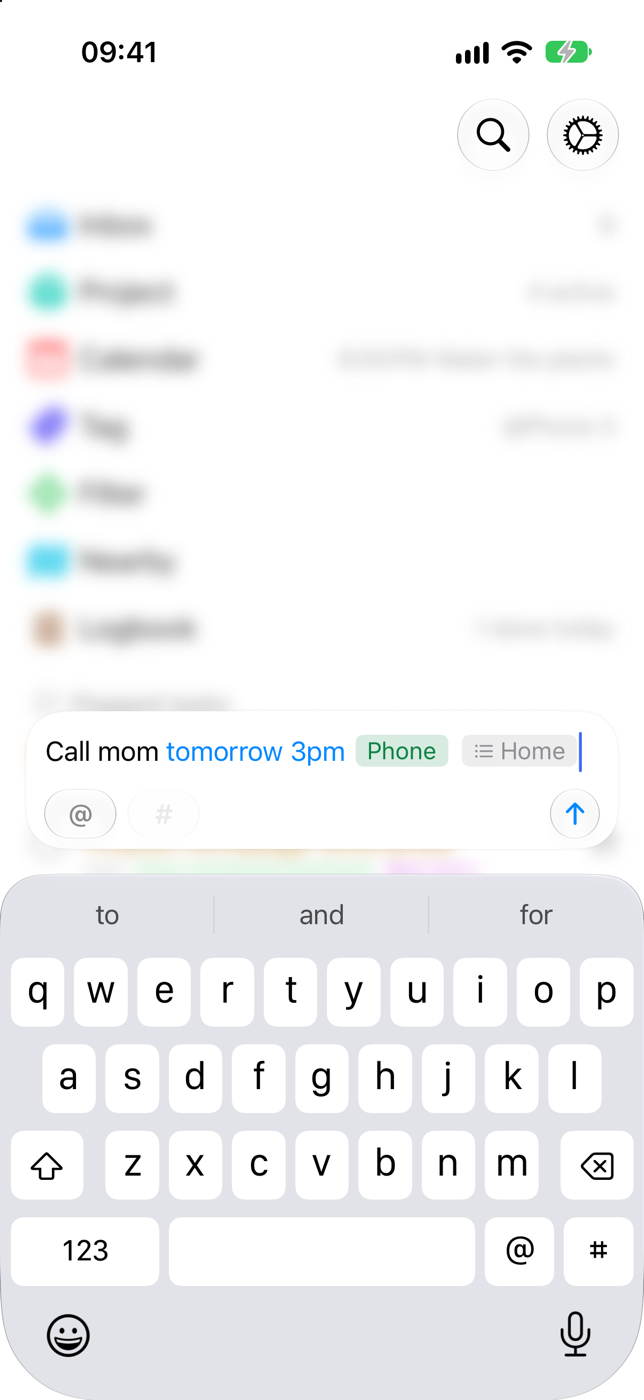
- Save and close: press Return on the keyboard. The task is saved and the card closes.
- Keep adding: tap the send button at the bottom right of the card. The task is saved, the card briefly confirms it, and the card stays open for the next task.
- Insert a tag or project: tap the
@or#button below the text, or type either symbol. Matching suggestions appear at the bottom of the card. - Discard: tap anywhere outside the card. The card closes and anything you haven't saved is cleared.
- Open the full editor: swipe up on + (or on the send button in the card) to open the full task editor, where you can set notes, a defer date, a repeat rule and every other field. Text already typed in the card is not carried over.
The first time, Locus shows the hint "Swipe up to open the full editor."
Inline rows in lists
The Inbox, projects, tags, the three action lists (Next Action, Waiting For, Someday / Maybe) and the list mode of Calendar end with an Add a task… row. Tap the row or the + button at the bottom of the page to start typing; press and drag up on + to open the full task editor instead. In Schedule, every day's group ends with its own row.
Inline rows understand natural language, @ and # as well, with suggestions shown in the bar above the keyboard.
- After typing a title, press Return. The task is saved and the cursor stays in the row so you can type the next one.
- Tap Done in the bar to finish. If the row still contains a title, it is saved too.
A task added on a page takes on that page's details: a task added in a project belongs to the project, one added on a tag's page has that tag, and one added in an action list is placed in that list. Tasks added in Schedule or Calendar use the day you are adding to. Whether that day becomes the due date or the plan date depends on Settings › Preference › Add task in schedule (Due Date by default). On a project page, # does not bring up project suggestions, because the task already belongs to the current project.
On the Mac
MacThe Mac offers these ways to add tasks:
| Method | How to open it | Where the task goes |
|---|---|---|
| New Task | Press ⌘N, or click + in the toolbar | Filled in from the current page, see the table below |
| Global Capture | Press ⌃⌥Space in any app, choose File > Global Capture…, click the menu bar icon, or open the link locus://add | The Inbox, unless the title includes a date or project |
| Inline row | Click Add a task… at the end of a list, or press ↩ when no task is selected | Filled in from the current page |
| Calendar timeline | Drag across or double-click an empty time slot | Opens the Quick Add panel with the dragged plan time range filled in |
The Quick Add panel
The first two methods open the Quick Add panel. The panel floats above the current window without bringing Locus to the front, and it also opens over full-screen apps and on other desktop spaces. Drag the panel by its background to move it.
The panel has a large title field with a flag button beside it. Below are a Notes field and a row of field buttons: Due, Plan, Project, Tag and List. You can't set a defer date in the panel. When the task is going to land in the Inbox, the add button reads Add to Inbox, and it updates as you type a date or project.
| Action | Shortcut |
|---|---|
| Add the task and close the panel | ↩ |
| Add the task and keep typing the next one | ⌘↩ |
| Move from the title to the notes | ⇥ |
| Set the due date / plan date | ⌥⌘D / ⌥⌘S |
| Choose a project / tags | ⌥⌘P / ⌥⌘T |
| Add or remove the flag | ⌥⌘F |
| Close the panel | Esc, or click outside the panel |
When you keep adding with ⌘↩, the panel keeps the details that were filled in, so you can record several tasks for the same project in a row. While an input method such as Pinyin is composing text, ↩ and Esc go to the input method first.
After you add a task, Locus briefly shows "Added to …" or "Task added". If the new task belongs to the list that is open, it is selected there. The panel doesn't switch pages or open the inspector.
Details filled in from the current page
When you press ⌘N or click + in the toolbar, the panel fills in details from the page you are on:
| Current page | Filled in |
|---|---|
| Projects, with a project selected | That project |
| Tags, with a tag selected | That tag |
| Next Action, Waiting For, Someday / Maybe | That action list |
| Flagged | The flag |
| Calendar | The selected day. Whether it becomes the due date or the plan date depends on Settings › General › Add Task in Schedule |
| Inbox and other pages | Nothing; the task goes to the Inbox |
The Global Capture shortcut
⌃⌥Space is a fixed global shortcut and can't be changed. As long as Locus is running (closing the main window doesn't quit it), pressing it in any app opens the Quick Add panel, and pressing it again closes the panel. Tasks added through Global Capture don't take on any details from the page that is open in Locus.
The menu bar icon
The menu bar icon is off by default. To turn it on, select Show in Menu Bar under Global Capture in Settings › General. Click the icon to open the Quick Add panel. Right-click it (or Control-click) for a menu with Global Capture…, Open Locus, Inbox, Projects, Schedule, Calendar, Settings… and Quit Locus.
Inline rows on the Mac
An Add a task… row appears at the end of the Inbox, Flagged and the three action lists, and on the Projects and Tags pages once a project or tag is selected. Filters, Calendar, Schedule and Logbook don't have this row.
- Press ↩ with no task selected to move the cursor to the row.
- Type a title and press ↩ to create the task. The cursor stays in the row so you can keep typing. Pressing ↩ on an empty row does nothing.
- If you click somewhere else, the text you typed is saved as a new task. Press Esc to discard it and return to the list.
As with the Quick Add panel, tasks added in this row take on the project, tag, action list or flag of the current page.
Natural-language entry
- Date and time, set as the due date
- @ tags, as many as you like
- # project, one per task
In the quick-entry card on Home, the inline rows in iPhone and iPad lists, the Mac Quick Add panel and the inline rows in Mac lists, Locus picks out the following from what you type:
- Due date: a date and time in the text become the task's due date. The recognized words are highlighted in the field.
- Tags: words that start with
@. A task can have any number of tags. - Project: a word that starts with
#. A task can belong to only one project.
Plan dates, defer dates, flags, repeat rules, durations and notes have no typed syntax. In the Mac Quick Add panel you can set the plan date, flag and notes with the panel's own controls; defer dates, repeat rules and durations are set afterwards in the inspector. On iPhone and iPad, use the full task editor. The title fields in the full editor and the Mac inspector don't parse natural language.
Tags and projects
After you type @ or #, Locus lists the tags or projects whose names match. On iPhone and iPad, tap a suggestion to choose it. On the Mac, use ↑ ↓ to choose and press ↩ to confirm. A chosen tag or project appears in the field as a colored token.
- Matching: matching ignores case. Tag and project names can contain spaces. If you want to keep typing the title after a name, choose the name from the suggestions first, or put tags and projects at the end of the line.
- Creating a tag or project: when nothing matches, the suggestions include Create “…”. The new tag or project is created only when the task is saved. New tags don't belong to a tag group, and new projects are placed at the top level of the project list.
- One project: once a project is chosen, any further
#is treated as plain text, and the#button on iPhone and iPad becomes unavailable. There is no limit on tags. - Keeping a symbol as text: every
@and#brings up suggestions, including those in email addresses or in "C#". To keep one as plain text, press Esc on the Mac, or tap × at the end of the suggestion bar on iPhone and iPad. Pressing Delete right after a colored token turns it back into text.
When the task is saved, the project token and any tags at the beginning or end of the line are removed from the title. A tag in the middle of a sentence stays in the title as an ordinary word. For example, if you type "Email @Jack", choose Jack from the suggestions and then type "about the trip", the title still contains "Jack" and the task also gets the tag Jack.
Limits in the free version
On iPhone and iPad, the free version allows up to 5 tags and 3 active projects. If you use @ or # to create a tag or project beyond these limits, Locus shows the subscription page and that tag or project isn't created, but the task itself is still saved. The Mac beta currently doesn't enforce these limits. See Free and Pro.
Dates and times
Locus recognizes at most one date and one time in a line, taking the first of each. The table lists the common forms:
| Type | English | Chinese | Result |
|---|---|---|---|
| Relative days | today, tomorrow | 今天、明天、后天、大后天 | That day |
| Day with a time of day | tonight | 今早、明早、今晚、明晚 | That day at 9:00 AM or 8:00 PM |
| Weekday | wednesday | 周三、星期三、礼拜三 | The next Wednesday, or today if today is Wednesday |
| A day this week | this wednesday | 本周三、这周三 | Wednesday of this week, even if it has already passed |
| A day next week | next wednesday | 下周三、下个星期三 | Wednesday of next week |
| Weekend | weekend, this weekend, next weekend | 周末、本周末、下周末 | Saturday of this week or next week; "weekend" means today if today is already a weekend day |
| Month and day | Aug 20, August 20th, 20 Aug, 1st of September | 8月20日、8月20号、八月二十日、十一月二十日、十二月二十五號 | The next August 20, which is next year if this year's has passed |
| Numeric date | 11/20 | 11/20 | The next November 20. See below for the order of month and day |
| Date with a year | September 1, 2027, 1 September 2027, 01/15/2027, 15.01.2027 | 2027年1月15日、2027/1/15、2027-01-15、2027.1.15 | That exact day |
| Month | in September, by September, until September | The 1st of that month, or today if it is already that month | |
| Time of day | morning, noon, afternoon, evening | 上午、早上、中午、下午、晚上 | 9:00 AM, 12:00 PM, 2:00 PM, 8:00 PM |
| Clock time | 9am, 9:30pm, at 9pm, 21:45 | 9点、9点30、9点半、十点二十、下午3点 | That time; "下午3点" is 3:00 PM |
For example, "Submit expense report next friday 3pm #Work" creates a task due next Friday at 3:00 PM in the Work project.
A few more details:
- Start of the week: for "this" and "next", the week always starts on Monday, regardless of the First day of week setting.
- Date only: the due time is your default due time (9:00 PM unless you change it). On iPhone and iPad, go to Settings › Preference › Default Due Time; on the Mac, go to Settings › General › Default Due Time.
- Time only: the date is today, or tomorrow if that time has already passed today.
- Order of month and day in numeric dates: a numeric date without a year is recognized only with slashes, such as
11/20. Whether it is read as month/day or day/month follows Settings › Preference › Date Format: with a day-first format (such as 09/06/2025 or 09.06.2025) it is read as day/month, with any other format as month/day, and with System Default it follows your region. In a date that ends with the year, a part greater than 12 is always taken as the day. - Forms that aren't recognized: references to the past ("last monday") are ignored. Relative offsets such as "in 3 days" or "next month" aren't supported; set those dates in the date fields.
- Languages: whatever your system language, Locus recognizes common date forms in English, Chinese (Simplified and Traditional), Japanese, Korean, Spanish, French, German, Italian, Portuguese and Russian at the same time.
Choosing which dates are recognized
If text that isn't meant as a date keeps being read as one, for example a reference number such as 11/09, you can turn that kind of date off. On iPhone and iPad, go to Settings › Preference › Date Recognition; on the Mac, go to Settings › General › Date Recognition. All six formats are on by default:
| Format | Examples |
|---|---|
| Relative days | today, tomorrow, tonight, 今天, 明天, 后天 |
| Weekdays and weekends | Friday, next Monday, weekend, 周三, 下周五 |
| Dates with month names | Aug 20, 1 September 2027, in September, 8月20日 |
| Numeric dates with year | 2027-01-15, 2027/1/15, 15.01.2027 |
| Numeric dates without year | 3/5, 11/09 |
| Times of day | 9am, 21:30, evening, 下午3点 |
Text in a format you turn off is no longer highlighted in the field, doesn't set a date, and stays in the task title as typed. Locus also doesn't recognize part of that text as another kind of date or time. For example, with Numeric dates with year off, "2027/11/09" stays in the title as a whole, and the "11/09" inside it isn't picked up as a numeric date without year. The setting applies to every place quick entry is available on that device, and like other settings it is stored separately on each device.
Where new tasks go
A task goes to the Inbox when it has no project, plan date, due date or action list, and none of its tags has Exclude from Inbox turned on. A task you capture with a date or project therefore doesn't appear in the Inbox: a task with a date appears under that day in Schedule, and a task with a project appears in that project. In the Mac Quick Add panel, an add button that reads Add to Inbox tells you the new task will go to the Inbox.
For the full Inbox rules and how to process it, see Inbox and processing.
Other ways to capture
iPhone iPadThese options are available only on iPhone and iPad. See Widgets, Siri and Shortcuts for details.
- Share extension: send a web page, text, an image or a file to Locus from another app through the system share sheet. A web link goes into the notes, images and files become attachments, and the task goes to the Inbox.
- Widget: the Task List widget on the Home Screen has a + button in its bottom-right corner that opens the Locus task editor. The New Task widget on the Lock Screen opens the task editor too.
- New Task control: once you add it to Control Center or the bottom of the Lock Screen, tap it to open the task editor.
- Home Screen quick action: touch and hold the Locus icon on the Home Screen and choose Add Task to open the full task editor.
- Siri and Shortcuts: the Add Task to Inbox action can set a title, notes, a due date and a flag without opening Locus. You can also say "Add to Locus" to Siri.
- Link: opening
locus:///addopens the task editor on iPhone and iPad, and the Quick Add panel on the Mac.