Repeating tasks
iPhone iPad Mac Pro featureRepeating tasks suit things that come round regularly, such as preparing for a weekly meeting, paying a monthly bill or booking an annual check-up. Locus doesn’t create a long list of copies in advance. When you complete the current task, it creates the next one according to the rule.
On this page
- Any task can repeat, with or without dates; an event needs a start time.
- Rules can repeat by day, week, month or year, on chosen weekdays, on particular days of the month or on the “nth weekday” of the month, with an optional end condition. A task without a due date or plan date can also use When Done.
- When you complete the task, Locus copies the whole task, including its subtasks, as the next occurrence and moves its dates to the new day. For a task without a due date or plan date that repeats daily, weekly, monthly or yearly, the next date is written as the new task’s defer date, so the new task stays unavailable until that day; with When Done, the new task keeps the same dates. Dropping a repeating task doesn’t create a next occurrence.
- After you change a repeating task, Locus asks whether the change applies to this task only or to all future tasks.
Setting up a repeat
A repeat rule is based on the first of the task’s dates that is set, in this order: due date, plan date, defer date. If none of them is set, it is based on the day you complete the task. An event is based only on its start time, so an event without a start time can’t repeat; iPhone and iPad show Start Time Required, and the Mac shows “Set a start time first”. If you remove the due date or plan date from a repeating task, the repeat rule is kept, and the next occurrence is then created as described in Tasks without dates.
- Open the task: on iPhone and iPad, tap the task to open the editor; on the Mac, select it and open the inspector.
- Add a repeat: on iPhone and iPad, tap Repeat in the quick bar at the bottom of the editor, and the task gets a Daily rule. On the Mac, click Repeat in the inspector’s Dates group and choose an option from the menu.
- Adjust the rule: on iPhone and iPad, tap the rule description in the Repeat row to open Repeat Settings. On the Mac, choose Custom… to open the repeat panel.
- Save: on iPhone and iPad, tap the confirm button; on the Mac, click Apply and then save the inspector.
To stop a task repeating, tap the name on the left of the Repeat row on iPhone or iPad; on the Mac, choose None, or click Remove Repeat in the repeat panel.
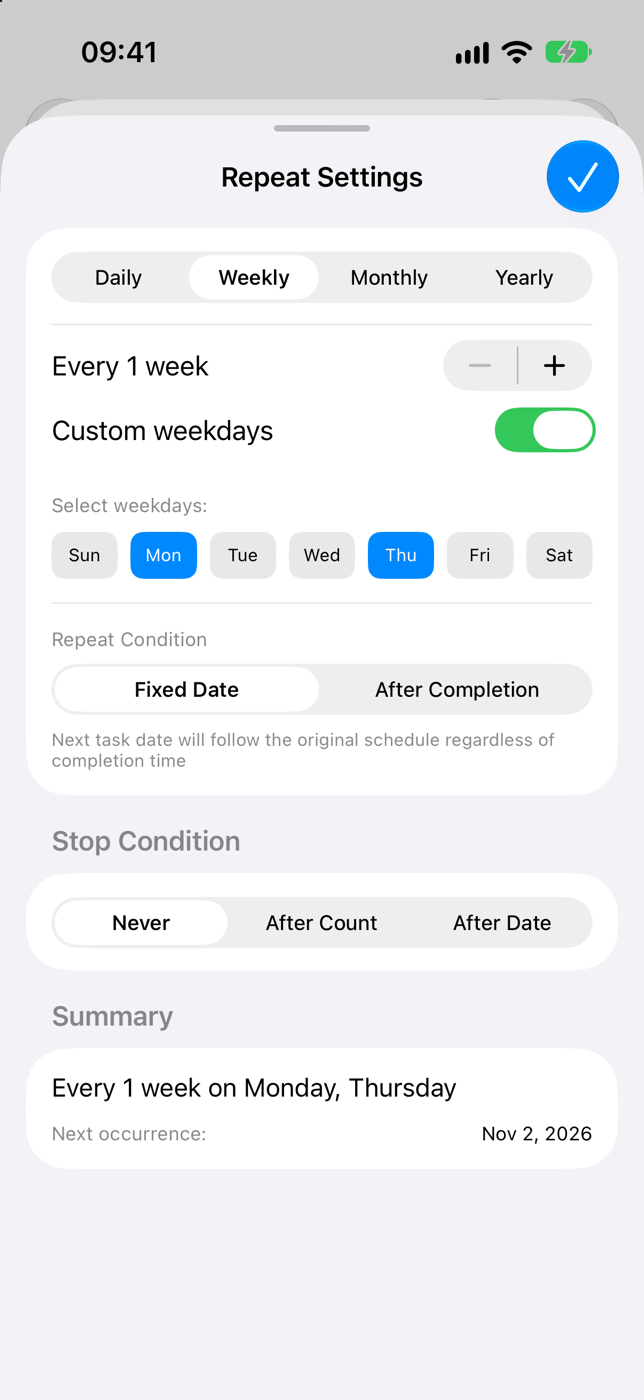
Repeat rules
These are the options in Repeat Settings. Where the Mac repeat panel uses a different name, it is given in parentheses.
| Option | Description |
|---|---|
| Repeat type | Daily, Weekly, Monthly or Yearly. When the task has no due date or plan date, a fifth option, When Done, is added; see When Done |
| Interval | “Every N days”, “Every N weeks”, “Every N months” or “Every N years”. On iPhone and iPad the range is 1–365 days, 1–52 weeks, 1–12 months and 1–10 years; on the Mac it is 1–999 |
| Weekdays | For a weekly repeat, turn on Custom weekdays and pick one or more days under “Select weekdays:” (on the Mac, click the weekday buttons) |
| Days of the month | For a monthly repeat, turn on Custom monthly and choose Day of month under Monthly Mode (Day of Month on the Mac). You can pick several days from 1 to 31, or Last Day (“Last day of month” on the Mac) |
| Nth weekday of the month | Under Monthly Mode, choose Day of week, tap Add, choose 1st to 4th or Last, and then a weekday, for example “Last Friday”. You can add several rules; tap Clear All to remove them all |
| Repeat Condition | Fixed Date: the next occurrence follows the original schedule, however late you finish this one. After Completion: the next occurrence is counted from the moment you complete this one (on the Mac, select “Repeat from completion date”) |
| Stop Condition | Never (“Never ends” on the Mac); After Count, from 1 to 100 times (“After a number of times” on the Mac, 1–999); After Date, with the date chosen under “Stop after” (“Until a date” on the Mac) |
Summary shows the full description of the rule and the “Next occurrence:” date. With After Completion, the next date isn’t known until you complete the task, so it reads “Calculated when completed”. When the rule stops after a number of times, “Completed:” shows how many have been done. When the task has no due date or plan date, the editor explains what will happen when you complete it; see Explanations in the editor.
Month ends and leap days
- If you choose the 31st of each month, months without a 31st are skipped. To have the task every month, choose Last Day, which falls on the actual last day of each month.
- A task that repeats yearly on 29 February appears only in leap years.
- When a task repeats every few weeks on chosen weekdays, it appears only in the weeks that match the interval. For example, every 2 weeks on Monday and Wednesday appears on Monday and Wednesday of one week and skips the next.
Common rules on the Mac
When you click Repeat on the Mac, the menu lists None, Daily, Weekly, Every 2 Weeks, Monthly, Yearly and Custom…; when the task has no due date or plan date, When Done follows Yearly. Choosing one of the common rules replaces the current rule with a fresh one; weekdays, monthly rules, the repeat condition and the stop condition you set earlier are not kept. For anything more specific, choose Custom… and set Every N days, weeks, months or years and the other options in the panel.
How the next occurrence is created
When you complete a repeating task, Locus creates the next occurrence like this:
- The whole task is copied: the title, note, tags, project, action list, flag, duration, attachments and subtasks all carry over, and every subtask is active again. The completed occurrence stays in the Logbook.
- The new date is worked out: with Fixed Date, the next occurrence is the first date in the rule’s schedule that is later than the current moment. If you finish early, that is the next date after this one; if you finish several periods late, the missed dates are skipped rather than creating several tasks at once. With After Completion, the next date is counted from the moment you complete the task.
- The other dates move by the same amount: the plan date, defer date, custom reminders and subtask dates move by the same number of days as the base date, and each keeps its own time of day. For a task that has only a plan date, the plan date moves to the next occurrence; for a task that has only a defer date, the defer date moves to the next occurrence and keeps its time of day. For an event, the start moves to the next occurrence and the length stays the same.
- Subtasks: a subtask’s own repeat rule isn’t copied to the next occurrence. Subtasks marked as belonging to this occurrence only aren’t copied either.
No further occurrence is created once the stop condition is reached. When the rule stops on a date, that date itself still counts.
Dropping ends the series
Setting a repeating task to Dropped doesn’t create a next occurrence, so the series ends there. If you only want to skip this one, use Skip This Occurrence.
Alarm settings
At present, the next occurrence of a repeating task doesn’t keep the due alarm. Turn it on again on the new task if you need it. See Reminders, alarms and notifications for how alarms work.
Tasks without dates
A task without a due date or plan date can repeat daily, weekly, monthly or yearly too. Because there is no due or plan date to move, Locus writes the next date as the new task’s defer date:
- Only a defer date: the defer date is the base date, and Fixed Date and After Completion work as usual. For example, take a weekly task deferred until 20 November that you complete on 30 November. With Fixed Date, the next occurrence is deferred until 4 December; with After Completion, it is deferred until 7 December.
- No dates at all: the next date is counted from the day you complete the task, and the new task gets an all-day defer date. For example, a weekly task completed on a Wednesday is deferred until the following Wednesday. On this first completion Fixed Date and After Completion give the same result; the new task now has a defer date, so the two differ from the second occurrence on.
The new task is created as soon as you complete the current one, but it stays unavailable until its defer date, so it doesn’t appear in views that show only actionable tasks. It is visible when you choose Remaining or All. On its defer date it becomes available on its own, without a notification. For more about defer dates, see Dates: plan, due and defer.
If you don’t want the new task to get a defer date, use When Done instead.
When Done
When Done suits things that have no fixed schedule and need doing again as soon as they are done. When you complete the task, Locus immediately creates a new copy with the same dates. No new date is calculated, and subtask dates stay as they are.
- Where to choose it: on iPhone and iPad, it is the last repeat type in Repeat Settings. On the Mac, it follows Yearly in the Repeat menu and is the last repeat type in the repeat panel. It is offered only for tasks that aren’t events and have no due date or plan date.
- Options: with When Done, the interval, weekdays, monthly rules and repeat condition are hidden, and only the stop condition remains. After Count and After Date work as usual.
- Adding dates later: if a task that uses When Done later gets a due date or plan date, the rule stays the same and the next occurrence is created with the same dates. Events can’t use When Done; if you turn such a task into an event, its repeat rule is removed.
- Ending the series: tasks that use When Done don’t have Skip This Occurrence. To end the series, set the task to Dropped.
Explanations in the editor
When a task has no due date or plan date, or uses When Done, the repeat editor explains what will happen when you complete it.
iPhone and iPad
- The note under Repeat Condition reads “The next task is deferred to the next date on the schedule” (Fixed Date) or “The next task is deferred to a date counted from when you complete this one” (After Completion).
- When the task has only a defer date, Summary shows “Deferred until:” instead of “Next occurrence:”, followed by the next defer date; with After Completion it reads “Calculated when completed”.
- When the task has no dates at all, Summary shows “When you complete this task, the next one is deferred until the next occurrence, counted from the completion date.”
- With When Done, Summary shows “A new copy of this task is created as soon as you complete it.”
Mac
The repeat panel shows an extra line under the summary:
- When the task has only a defer date and uses Fixed Date, the line gives the exact date, for example “When you complete this task, the next one is deferred until Dec 4, 2026.”
- When the task has no dates at all, or uses After Completion, it reads “When you complete this task, the next one is deferred until the next occurrence, counted from the completion date.”
- With When Done, it reads “A new copy of this task is created as soon as you complete it.”
Tasks with a due date or plan date that repeat daily, weekly, monthly or yearly show the “Next occurrence:” date as before, without these explanations.
Update every device to 2.7
Repeats on tasks without dates and When Done need version 2.7 or later. On a device that still runs an earlier version, completing such a task doesn’t create the next occurrence, and changing its dates there may remove the repeat rule.
Skipping an occurrence
If you don’t intend to do this occurrence but want the series to continue, skip it:
- iPhone and iPad: touch and hold the task and choose Skip This Occurrence.
- Mac: Control-click the task and choose Skip This Occurrence.
Locus creates the next occurrence and marks the current one as Dropped. The command appears only for active repeating tasks, and not for tasks that use When Done. On the Mac it works on one task at a time and can be undone with ⌘Z.
This Task Only and All Future Tasks
When you save a change to a repeating task or one of its subtasks, Locus asks “This is a repeating task.” and “Apply this change to this task only, or to all future tasks?”:
- This Task Only: the change applies to this occurrence only. Locus remembers the original values and creates the next occurrence from them. For example, if you push this occurrence’s due date back two days, the rest of the series keeps its schedule.
- All Future Tasks: the change carries over to every future occurrence.
The change has already been saved at this point, so the dialog has no Cancel button.
Since version 2.5.1, any of the following changes triggers the question: dates (due, plan, defer, and an event’s start and end), action list, flag, title, note, tags, duration, whether subtasks are parallel or sequential, task or event type, and custom reminders. Changing the project, attachments, status, alarm or the repeat rule itself doesn’t.
When you create a subtask under a repeating task, or drag a task into one, Locus asks “This subtask belongs to a repeating task.” and “Keep for this task only, or include in all future tasks?”. If you choose This Task Only, the subtask won’t appear in the next occurrence.
Locus doesn’t ask in these cases:
- The change comes from Locus AI, an MCP connection, iCloud sync or an import.
- The subtask only joined the repeating task since you opened the app, for example a subtask you created a moment ago and are now renaming.
- The subtask is already marked as belonging to this occurrence only.
“This occurrence only” commands in menus
For a repeating task where you chose This Task Only, the touch-and-hold menu (iPhone and iPad) or the Control-click menu (Mac) shows an extra group. It appears only on tasks that are still open:
| Group heading | Command | Effect |
|---|---|---|
| Changed for This Task Only | Revert to Usual | Restores the values changed for this occurrence to their usual values |
| Apply to All Future Tasks | Applies this occurrence’s changes to every future occurrence as well | |
| Only for This Task | Include in All Future Tasks | Makes a subtask that belonged to this occurrence only appear in every future occurrence |
Finding repeating tasks
When you create or edit a custom filter, you can add the Is Repeating condition to list every task with a repeat rule, or to exclude them.
Free and Pro
On iPhone and iPad, creating or changing a repeat rule requires Locus Pro. Without Pro you can still remove existing rules, and existing repeating tasks keep creating their next occurrences. The Mac beta currently doesn’t limit repeating tasks. See Free and Pro.